
Download vSTAGE
Please check out our System Requirements before you proceed. To download the current public build of vSTAGE, go to vHUB.ch and click the preferred method of download on the bottom right.
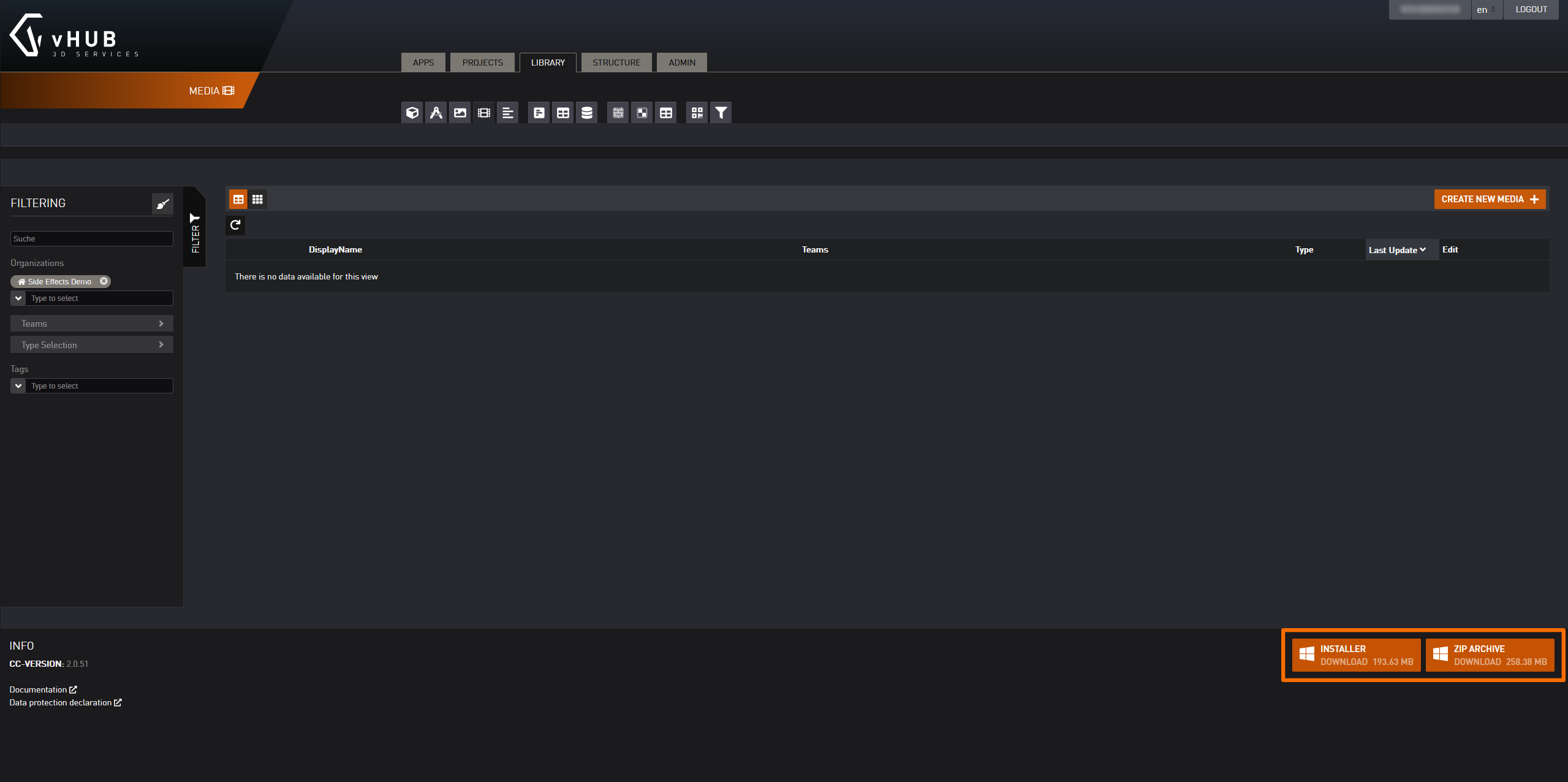
Installer Method:
Downloading the Installer downloads an executable file, that will install vSTAGE for you.
- Once downloaded, double click the application file.
- Apply your preferred settings, and click Install.
- After completion, you should find vSTAGE by searching for it in your search bar.
Zip Archive Method:
Downloading the Zip Archive, will give you a Zipped folder with all necessary files to run vSTAGE.
- Unzip the downloaded folder by right clicking and clicking Extract All.
- Choose a preferred destination for the vSTAGE folder and click Okay.
- Once the folder has been unzipped, you can click into the folder and start vSTAGE via the application named vSTAGE.
You need a vHUB.ch account to use vSTAGE. If you don’t have an account yet or have issues logging in, contact us.
Updates
At startup, vSTAGE checks if newer versions are available online. Once a newer version is detected, the user is offered the update. If the update is accepted, the installer is downloaded and started automatically.
You can also check for updates manually using the following button:
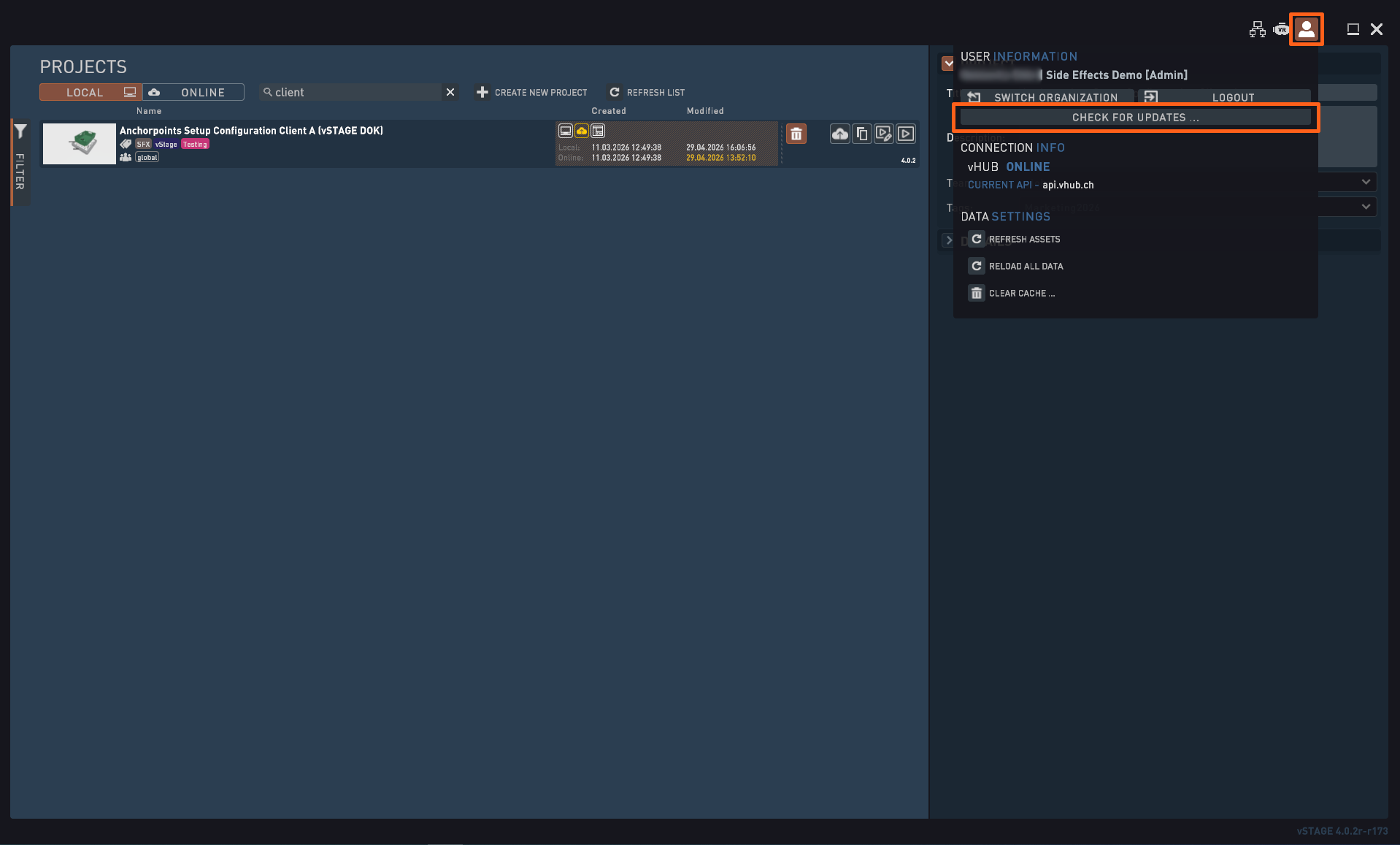
In special cases it can happen that an update is handled as a mandatory update.
Advanced Information for IT Professionals
For Windows Operating Systems:
- vSTAGE needs write access to the directory %userprofile%\AppData\LocalLow\SideEffects. Ensure the user has write access to this directory.
- vSTAGE needs write access to the installation directory. The default installation directory is C:\Program Files (x86)\Side Effects. Ensure the user has write access to the installation directory.
- vSTAGE needs web access. Ensure the computer has access to the internet.
If something does not work as expected check the settings of your
- (local) firewall
- antivirus
- Microsoft security, e.g. AppLocker
If that did not help
- Try to run the software as administrator.
- Check the Windows Application EventLog.
- Check if you have enough free storage on the computer to cache the 3D data. Especially if the system runs in a virtual machine (VM).
- Delete the cache folder in the directory %userprofile%\AppData\LocalLow\SideEffects\cache